Migration guide
Move from spreadsheets to OnboardOps
Bring your employee list, set up roles and start tracking training, checklists and policies in an afternoon.
1.Clean your employee sheet
Keep one row per person with these columns: Full name, Email, Phone, Department, Job role, Hire date and Emergency contact. Only Full name and Email are required.
Use dates like 2026-11-02. Remove empty rows and merged cells. Save the sheet as a CSV file.
2.Create your workspace and set up departments and job roles
Create a workspace, then open Settings and add your departments and job roles. Job roles can carry required courses, so new people are assigned the right training automatically.
If you skip this, the import can create missing departments and job roles for you.
/app/settings
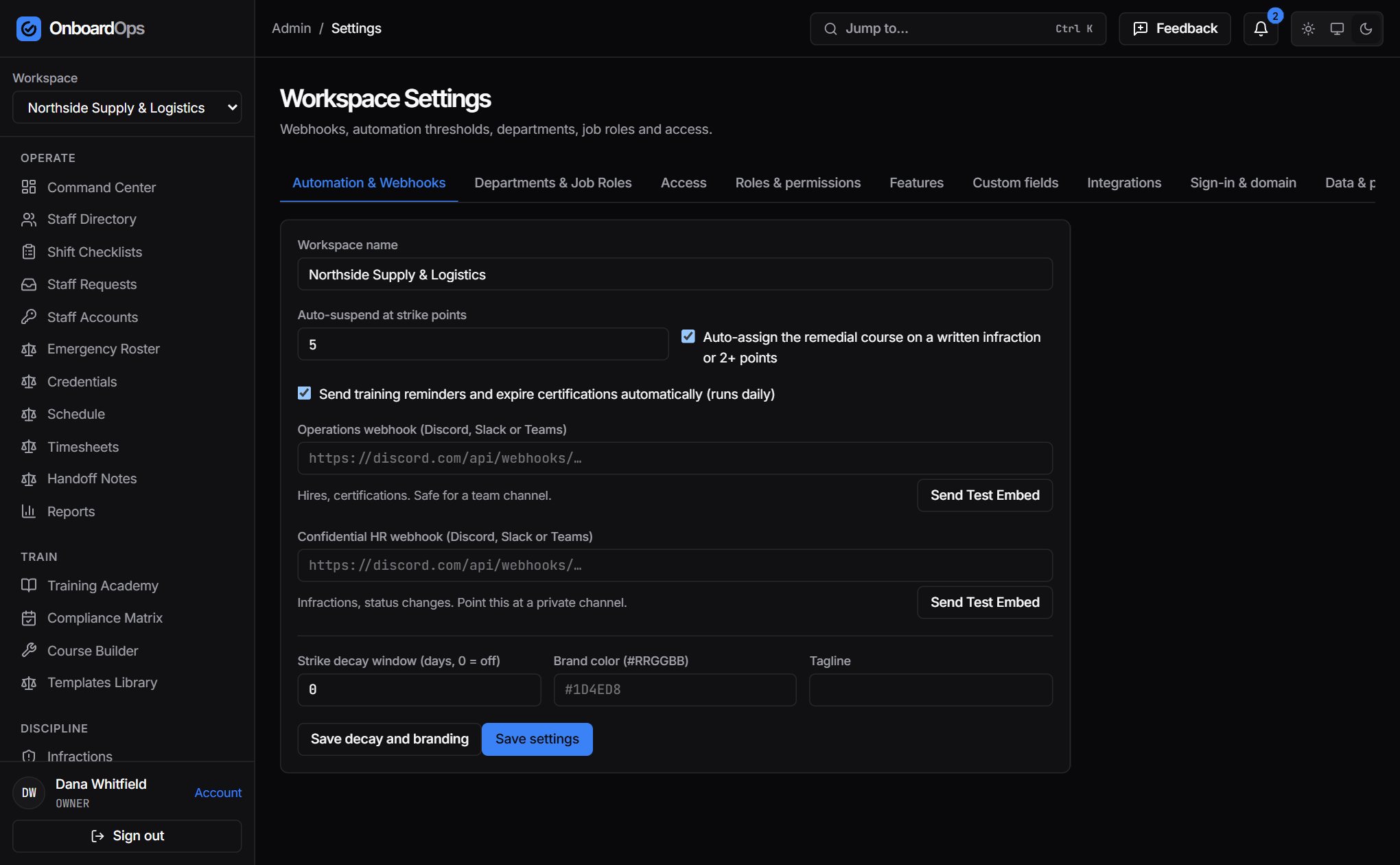
3.Import the CSV
Open Staff Directory and choose Import CSV. Pick your file. The importer matches columns by name, and you can match any it missed by hand. Preview the first rows, then import.
The importer lists every row it skipped and why, such as a duplicate email.
/app/directory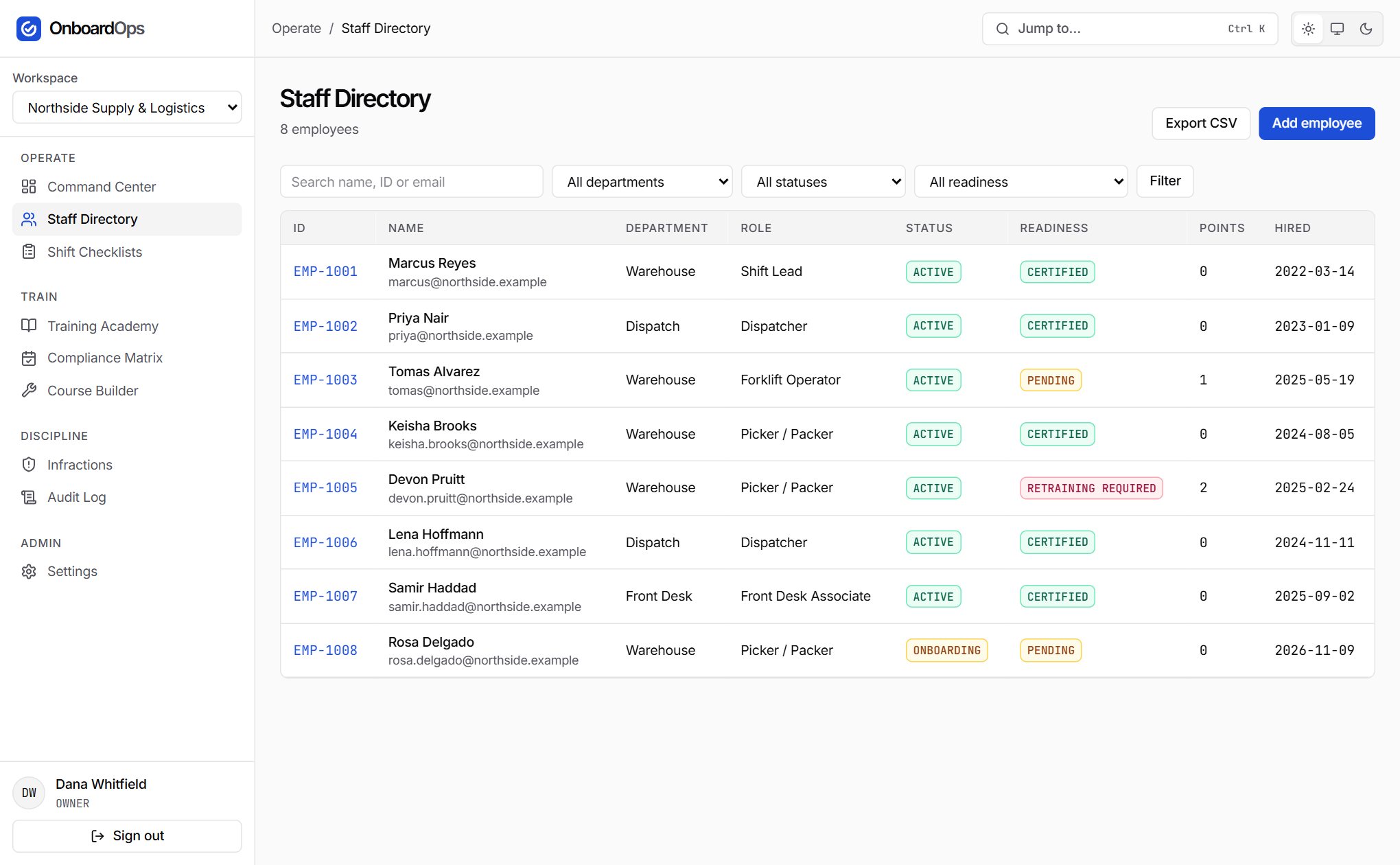
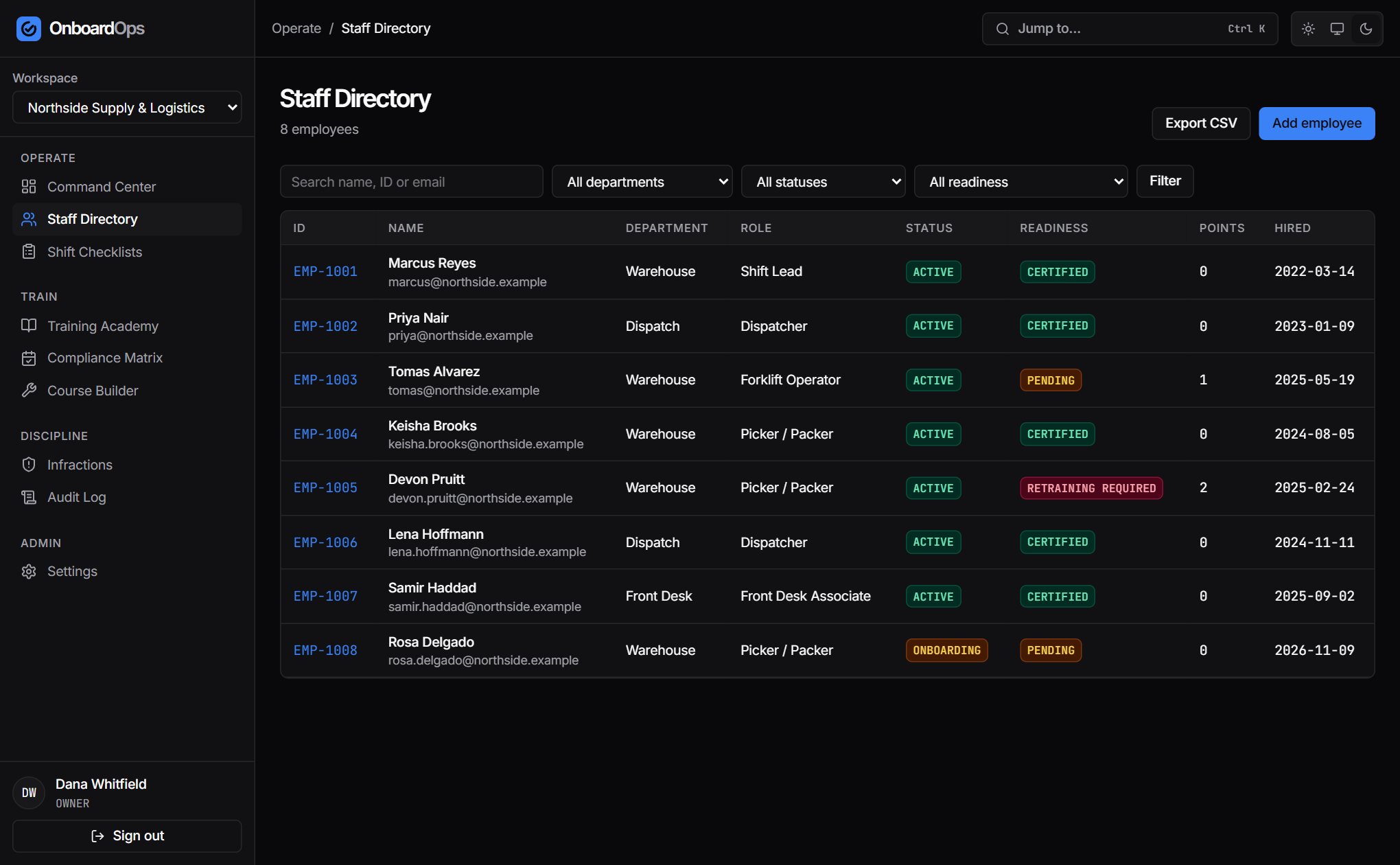
4.Check the result
Spot-check a few people. Fix mistakes on the employee page. Names, contact details and status can be edited at any time.
5.Bring over what the spreadsheet tracked
Training: courses and quizzes start fresh. Record certificates people already hold as documents or credentials so you can track their expiry.
Time off balances: set each person's yearly days on their page.
Past discipline: you do not need to re-enter old write-ups. Keep the originals, attach them as documents if you must, and use cases going forward.
6.Replace your checklists and sign-off sheets
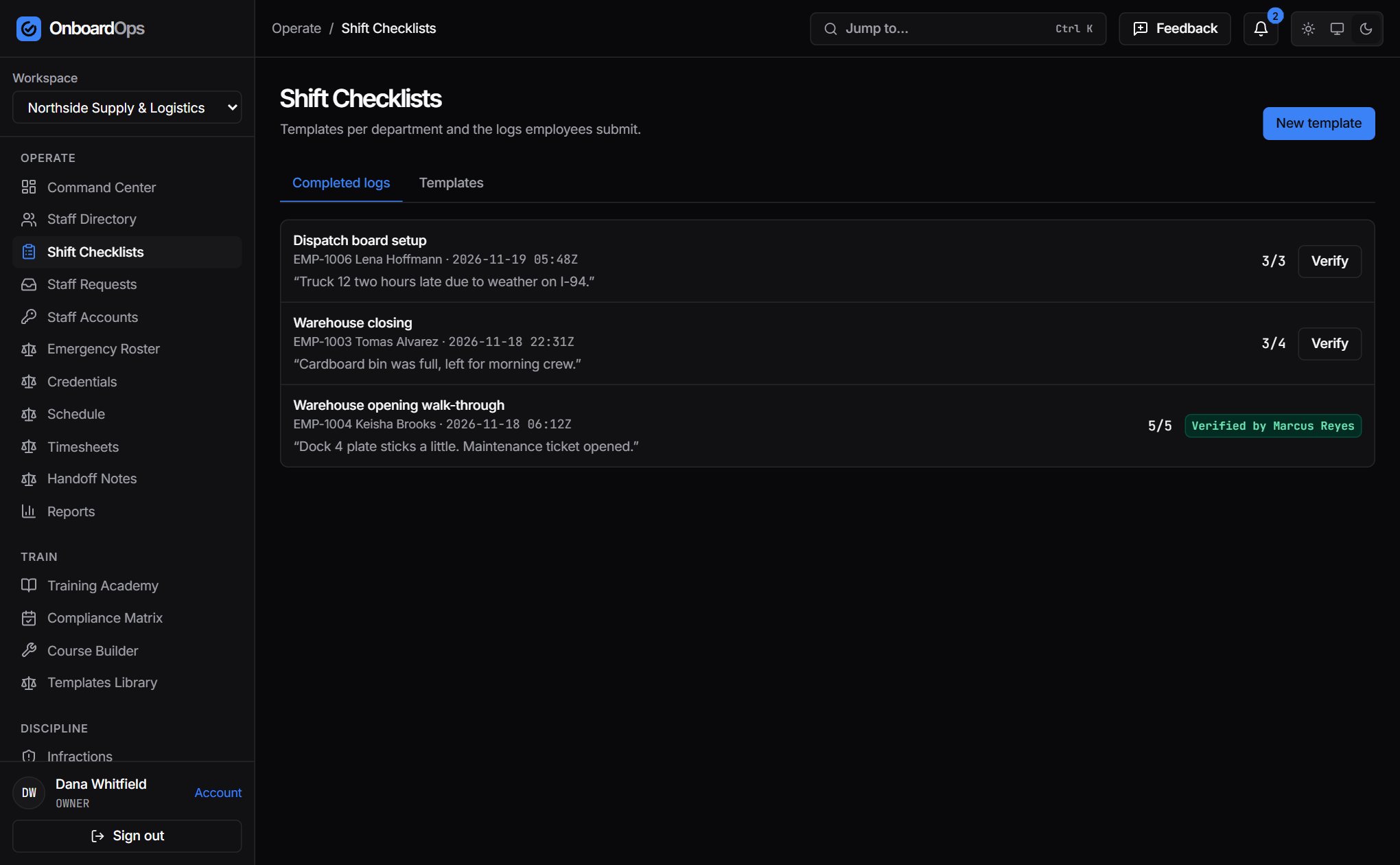
Turn your shift checklists into templates and choose which days and times they repeat. Upload your handbook and policies, assign them to roles, and let people sign once.
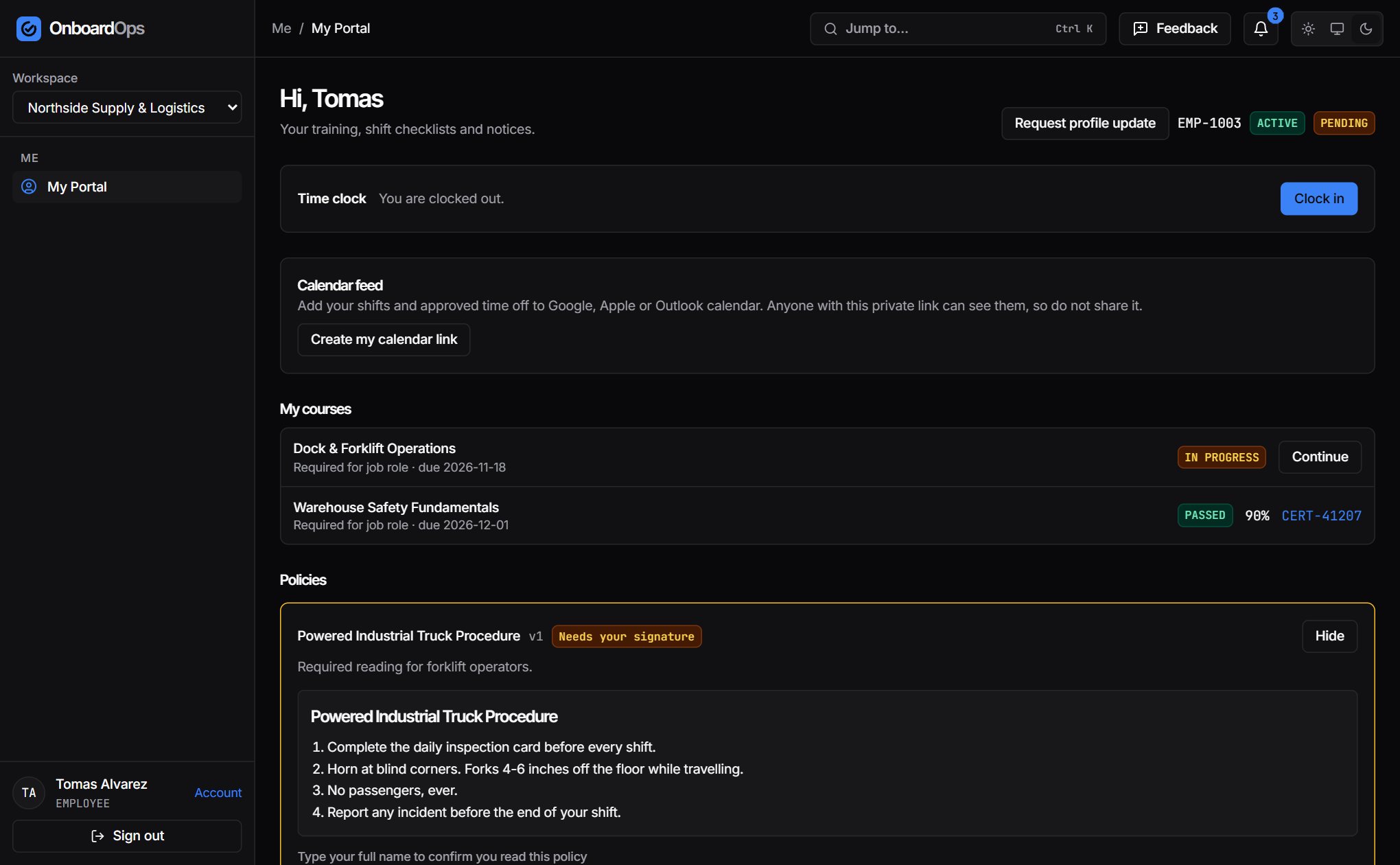
Employees then complete checklists and sign policies from their own portal.
/app/checklists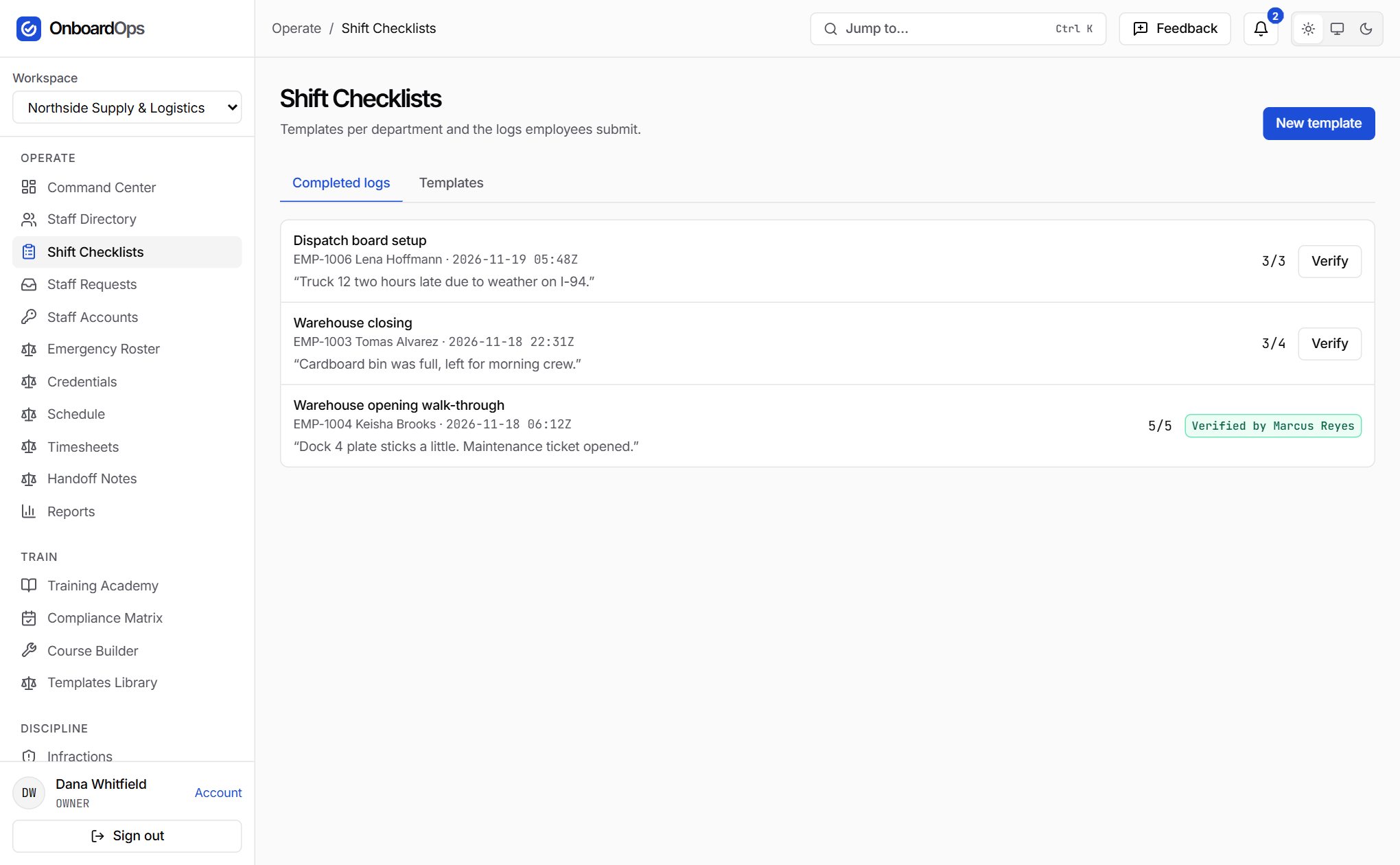
7.Invite your team
Send sign-in invites from Staff Accounts so each person chooses their own password. Give managers and supervisors the right role. Keep your spreadsheet read-only for a few weeks, then archive it once everything is confirmed.
/app/my-portal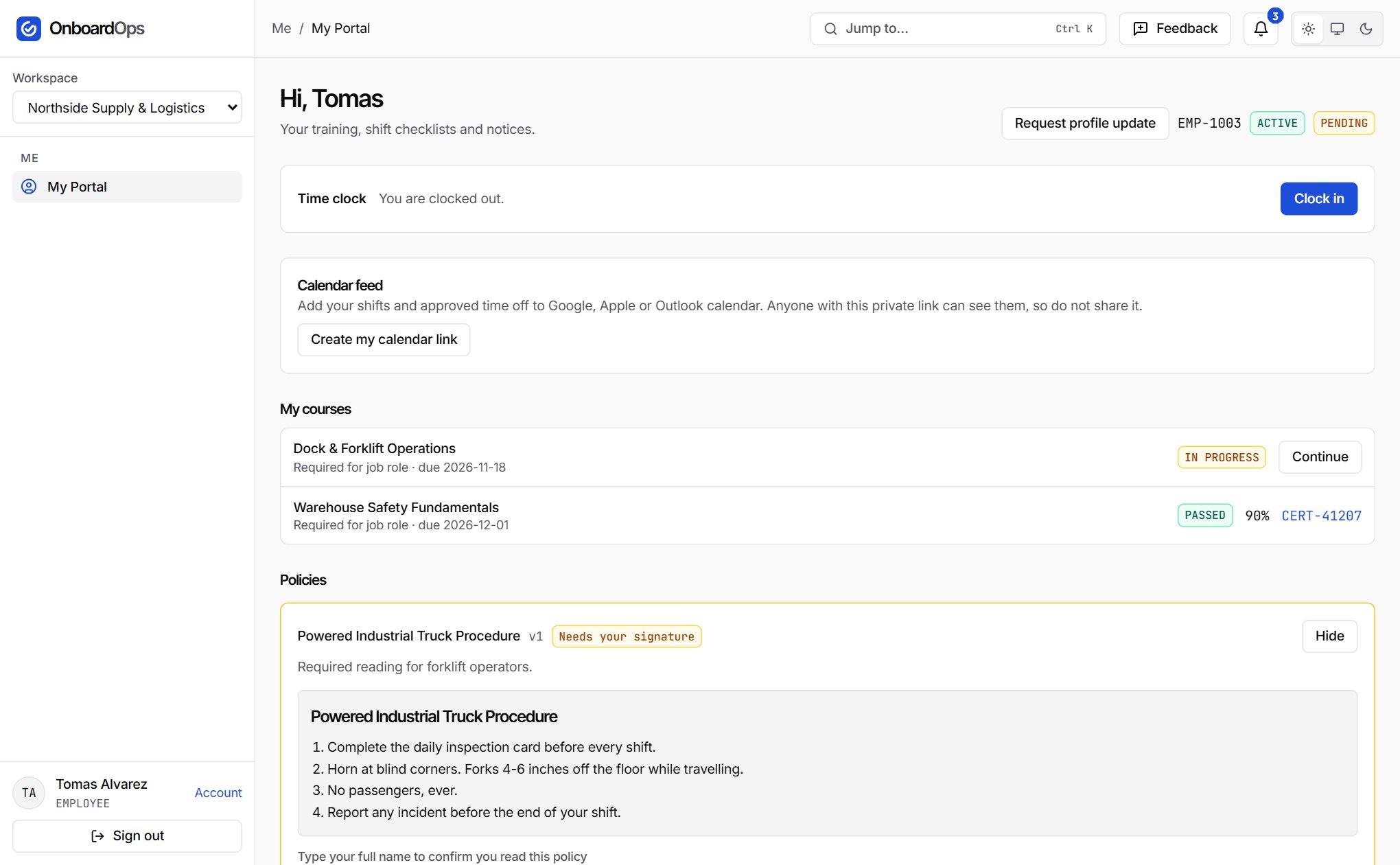
Try it with your own team
Free during the beta. Set up a workspace in a few minutes.